---
title: How To View Your Invoice
description: We hope this info was a help. If you have any problems or questions, please let us know. You can open a support ticket or contact us at 1-888-501-8430 for additional assistance.
---
[Skip to content](https://helpcentre.primus.ca/how-to-view-your-invoice-1#main-content)
- [English](https://helpcentre.primus.ca/how-to-view-your-invoice-1)
- [Français](https://helpcentre.primus.ca/fr/comment-afficher-votre-facture)
English
Show submenu for translations
![Primus\_SecondaryBusinessLogo.png\]](https://helpcentre.primus.ca/hs-fs/hubfs/Primus_SecondaryBusinessLogo.png?height=50&name=Primus_SecondaryBusinessLogo.png)
Open main navigation
Close main navigation
- - [English](https://helpcentre.primus.ca/how-to-view-your-invoice-1)
- [Français](https://helpcentre.primus.ca/fr/comment-afficher-votre-facture)
English
Show submenu for translations
- Primus.ca
Primus.ca
Find helpful tips & tools.
- There are no suggestions because the search field is empty.
1. [Primus Help Centre](https://helpcentre.primus.ca/?hsLang=en)
2. [My Portals](https://helpcentre.primus.ca/my-portals?hsLang=en)
3. [eCare](https://helpcentre.primus.ca/my-portals?hsLang=en#ecare)
# How To View Your Invoice
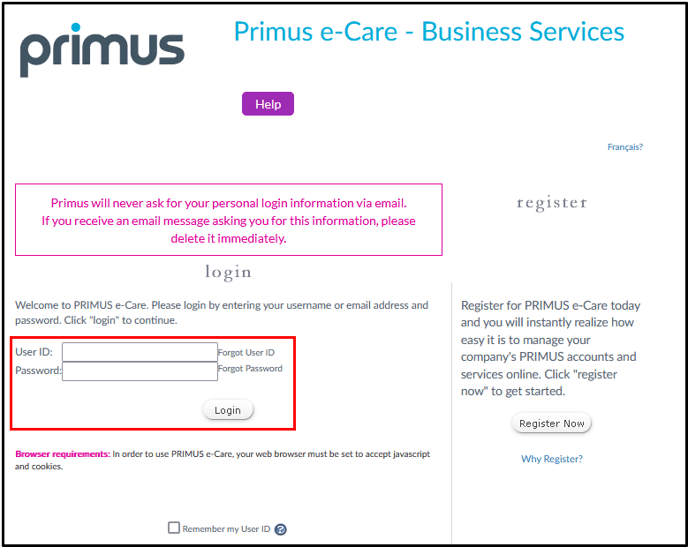
1. Navigate to the e-Care portal located at https://ecare.primustel.ca/ and proceed to log in to your account.
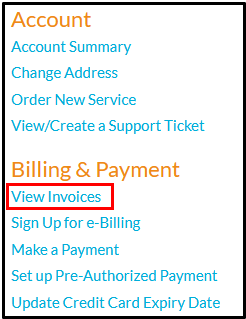
2. Proceed to the main page and select **View Invoices** from the left-hand menu.
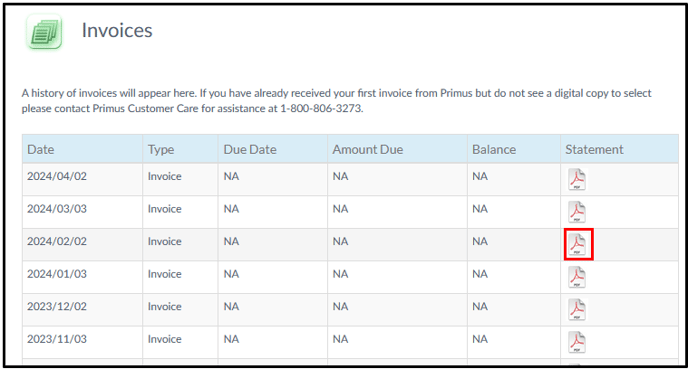
3. Browse through the list of invoices on the Invoices page until you find the one you need, then simply click on the .pdf icon in the Statement column to download a copy of the invoice.
We hope this info was a help. If you have any problems or questions, please let us know.
You can open a [support ticket](https://helpcentre.primus.ca/contact-us?hsLang=en) or contact us at 1-888-501-8430 for additional assistance.
- [Business Internet](https://helpcentre.primus.ca/business-internet?hsLang=en#main-content)
- [Service Installation](https://helpcentre.primus.ca/business-internet?hsLang=en#service-installation)
- [Troubleshooting](https://helpcentre.primus.ca/business-internet?hsLang=en#troubleshooting)
- [Hosted PBX](https://helpcentre.primus.ca/hosted-pbx?hsLang=en#main-content)
- [Service Installation](https://helpcentre.primus.ca/hosted-pbx?hsLang=en#service-installation)
- [Troubleshooting](https://helpcentre.primus.ca/hosted-pbx?hsLang=en#troubleshooting)
- [My Portals](https://helpcentre.primus.ca/my-portals?hsLang=en#main-content)
- [Hosted PBX](https://helpcentre.primus.ca/my-portals?hsLang=en#hosted-pbx)
- [uControl](https://helpcentre.primus.ca/my-portals?hsLang=en#ucontrol)
- [eCare](https://helpcentre.primus.ca/my-portals?hsLang=en#ecare)
- [Network Status](https://helpcentre.primus.ca/network-status?hsLang=en)
- [Contact Us](https://helpcentre.primus.ca/contact-us?hsLang=en)
[](https://helpcentre.primus.ca/?hsLang=en)
© 2024 Primus. All Rights Reserved
Copyright © 2026, Distributel